
What Is Transcoding? A Complete Guide to Audio and Video Conversion
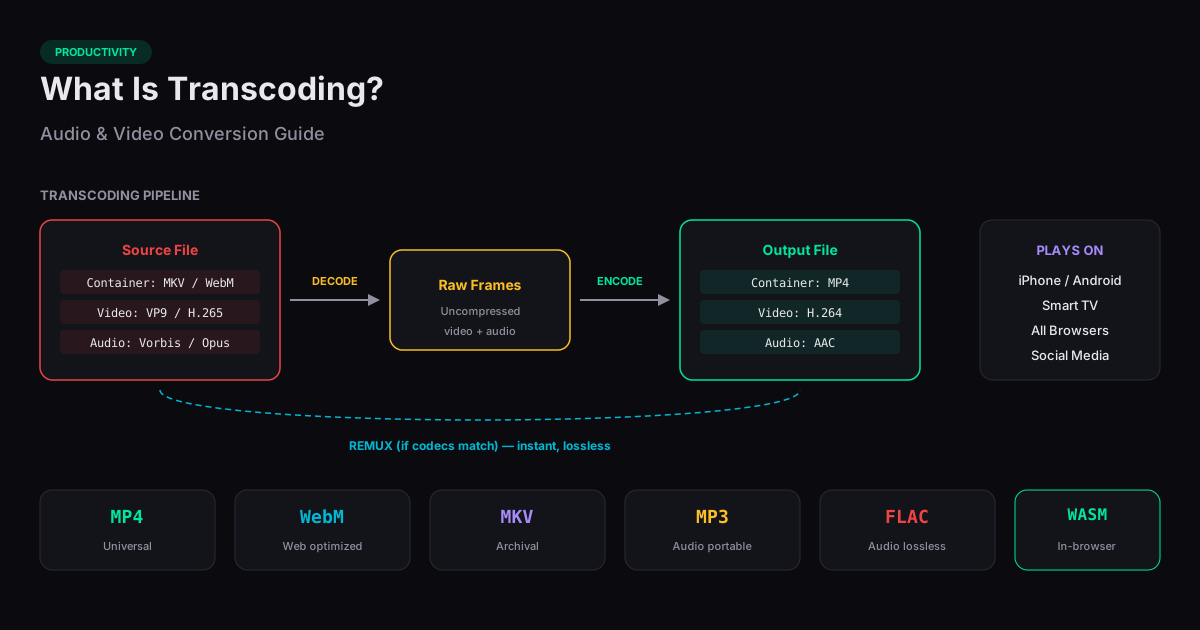
Transcoding is the process of converting a media file from one codec or format to another. If you have ever converted an MKV video to MP4 so it plays on your iPhone, extracted an MP3 audio track from a video, or converted a FLAC album to MP3 for your phone, you have already done transcoding. This guide explains what happens under the hood, when you actually need to transcode, and how to do it for free directly in your browser without uploading files to any server.
Transcoding vs Remuxing vs Converting: What Is the Difference?
These terms are often used interchangeably, but they mean different things. Transcoding decodes the media from one codec and re-encodes it into another — for example, converting VP9 video (used in WebM) to H.264 (used in MP4). This is computationally expensive and involves a small quality loss because the data is decompressed and recompressed.
Remuxing changes the container format without touching the codec. If an MKV file already contains H.264 video and AAC audio, converting it to MP4 can be done by simply repackaging the streams into a different container — no decoding or re-encoding needed. This is near-instant and lossless. Converting is the umbrella term that covers both operations.
Codecs vs Containers: Understanding the Difference
A container (MP4, MKV, WebM, AVI) is the file format that wraps video, audio, and subtitle streams together. Think of it as a box. A codec (H.264, H.265/HEVC, VP9, AV1, AAC, MP3) is the compression algorithm used to encode each stream inside the box. The same codec can live in different containers — H.264 video works in both MP4 and MKV containers.
When people say "convert MKV to MP4," what they often need is just a container change (remux). But when they say "convert WebM to MP4," they usually need a full transcode because WebM typically uses VP9 video, which needs to be re-encoded as H.264 for MP4 compatibility. Understanding this distinction saves time — remuxing takes seconds while transcoding can take minutes.
When Do You Actually Need to Transcode?
The most common reason is device compatibility. iPhones cannot play MKV or WebM files. Smart TVs often struggle with VP9 or AV1 codecs. Windows Media Player has limited codec support. Converting to MP4 with H.264 video and AAC audio gives you the most universally compatible format — it plays on every device, every browser, and every platform.
Other common scenarios: extracting audio from video (MP4 to MP3), reducing file size for sharing (re-encoding at a lower bitrate), converting lossless audio for portable devices (FLAC to MP3), and preparing media for social platforms that require specific formats or codecs.
Does Transcoding Reduce Quality?
Yes — any time you decode and re-encode with a lossy codec, some quality is lost. This is called generation loss. However, the amount of loss depends on the output bitrate. At matching or higher bitrates, the loss is imperceptible to most people. The practical rule: if you transcode H.264 1080p at 8 Mbps to H.264 at 8 Mbps, you will not see a difference.
Remuxing (container change only) causes zero quality loss because the encoded streams are not touched. Transcoding between lossless formats (FLAC to WAV) is also lossless. The quality trade-off only applies when at least one codec in the conversion is lossy — which covers most real-world scenarios.
Browser-Based Transcoding with WebAssembly
Traditionally, transcoding required desktop software like FFmpeg (command line) or HandBrake (GUI). Now, FFmpeg has been compiled to WebAssembly, allowing it to run directly inside a browser tab with near-native performance. This means you can transcode video and audio files without installing anything and without uploading your files to a server.
Our browser-based converter tools use FFmpeg WebAssembly to process files locally on your device. Your video and audio files never leave your computer — the entire conversion happens in your browser using your CPU. This is slower than a native desktop app but offers complete privacy and zero setup. For files under 500 MB, the speed difference is minimal on modern hardware.
Common Transcoding Formats and When to Use Each
MP4 (H.264 + AAC) is the universal format — use it when you need maximum compatibility. WebM (VP9 + Opus) is optimized for web delivery and offers better compression than H.264 at the same quality, but has limited hardware support outside browsers. MKV is a flexible container for archival — it supports virtually any codec and multiple audio/subtitle tracks.
For audio, MP3 is the most compatible format for portable devices and car stereos. AAC offers better quality than MP3 at the same bitrate and is the default audio codec in MP4 containers. FLAC is lossless and ideal for archiving music — convert to MP3 or AAC only when you need smaller files for portable listening.
Related Tools
MP4 to MP3
Extract audio from video files and save as MP3, entirely in your browser.
WebM to MP4
Convert WebM videos to universally compatible MP4 format in your browser.
MKV to MP4
Convert MKV (Matroska) video files to MP4 format directly in your browser.
FLAC to MP3
Convert lossless FLAC audio to MP3 for universal playback, entirely in your browser.
Audio Converter
Convert between MP3, WAV, OGG, FLAC, AAC, and more — right in your browser.