
PDF to Word Conversion: Tips for Better Results
Getting good results from PDF to Word conversion tips starts with understanding what a PDF actually is. A PDF is not a document in the way a Word file is — it is a fixed layout of positioned text, images, and shapes. Converting to Word means reconstructing editable paragraphs, tables, and formatting from that layout, and the results vary widely depending on how the PDF was created.
Which PDFs Convert Well?
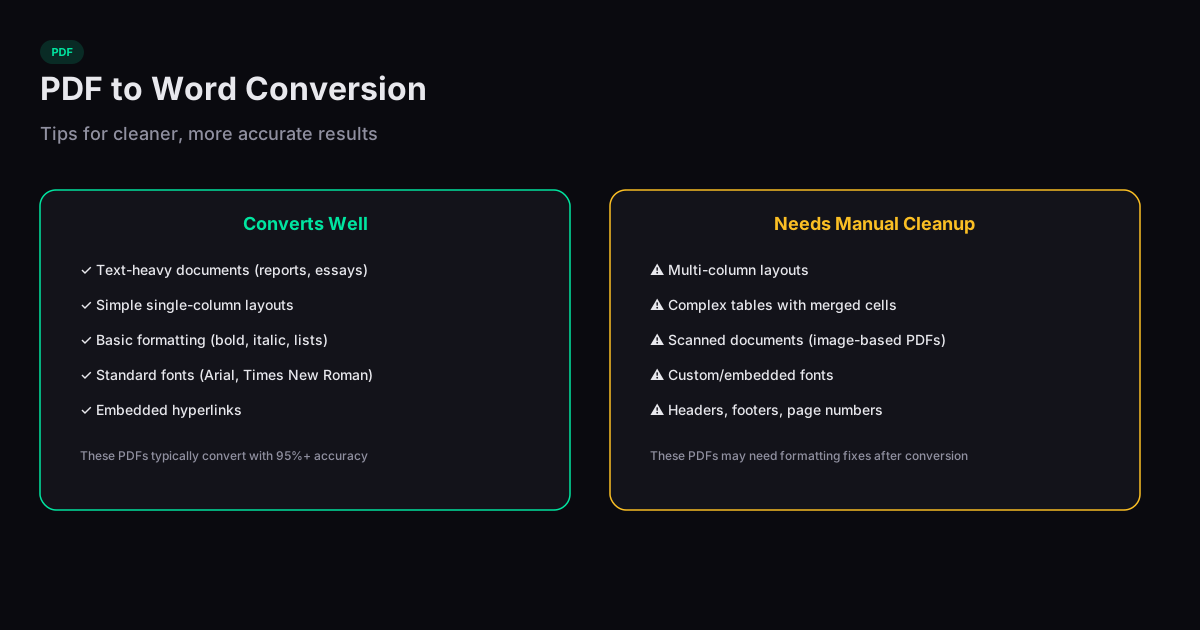
PDFs created from text-based sources — Word documents, Google Docs, LaTeX — convert the best because they contain real text data with implicit structure. The converter can extract paragraphs, headings, lists, and tables with reasonable accuracy. Simple, single-column layouts produce the cleanest results.
Scanned PDFs (images of printed pages) convert the worst because they contain no actual text — only pixel images. Converting these requires optical character recognition (OCR), which introduces errors especially with handwriting, unusual fonts, or low scan quality. Multi-column layouts, complex tables, and documents with text wrapped around images also challenge converters.
Understanding Conversion Limitations
PDF to Word conversion is fundamentally a best-guess reconstruction. The PDF format defines where every character appears on the page, but it does not define paragraphs, headings, or document structure. The converter must infer that characters close together on the same line form a word, that lines with similar spacing form a paragraph, and that bold large text is probably a heading.
This inference works well for standard documents but breaks down with creative layouts. Headers and footers may merge into body text. Text in sidebars may interleave with the main content. Decorative elements may be interpreted as part of the text flow.
Tips for Better Conversion Results
Start with the highest-quality source PDF available. If you have access to the original Word or Google Doc file, use that instead of converting the PDF. If you must convert, remove unnecessary pages before conversion to reduce processing complexity and error surface.
After conversion, expect to spend time on cleanup. Check paragraph breaks (converters often break paragraphs at line endings), table formatting (cells may merge or split incorrectly), and image positioning. Headers and footers usually need manual adjustment or removal.
When to Use Alternative Approaches
If you only need to extract the text content without preserving formatting, copying and pasting from the PDF viewer is often faster than a full conversion. If you need to fill in a PDF form, use a PDF editor rather than converting to Word and back. If the PDF is a scanned document and you need editable text, a dedicated OCR tool will produce better results than a general-purpose PDF-to-Word converter.
Related Tools
PDF to Word
Convert PDF documents to editable Word files directly in your browser.
Word to PDF
Convert Word documents to PDF format instantly in your browser.
Compress PDF
Reduce PDF file size without losing quality, right in your browser.
Merge PDF
Combine multiple PDF files into one document — entirely in your browser, no uploads.