
How to Convert JSON to CSV: Methods, Tools, and Common Pitfalls
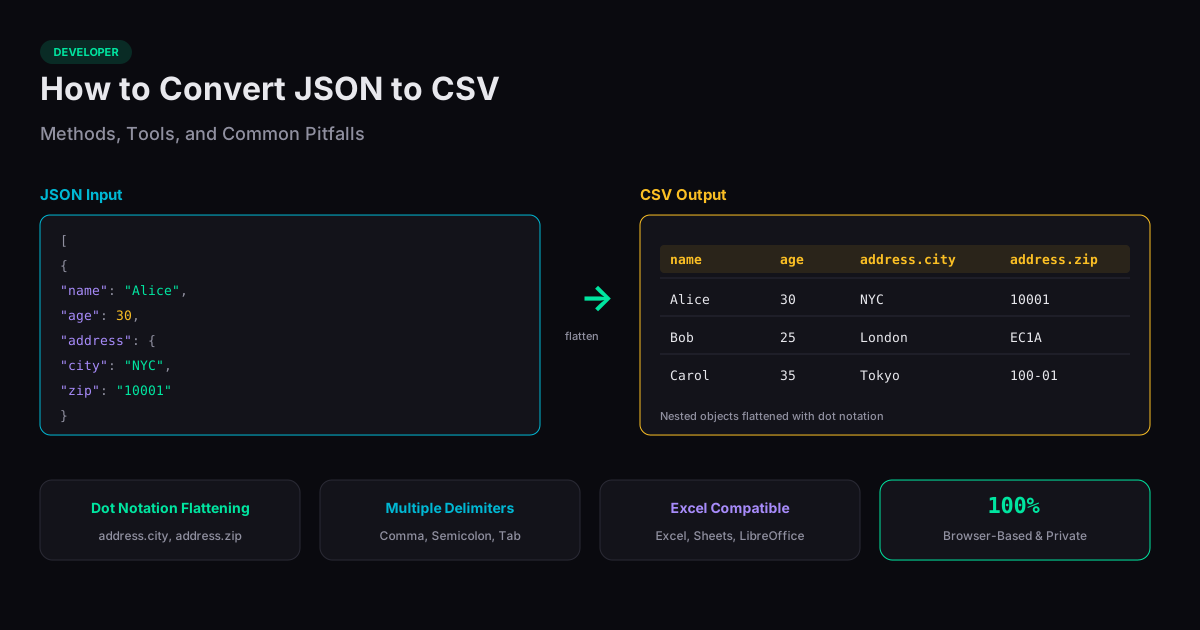
Converting JSON to CSV sounds simple — and for flat data, it is. But real-world JSON from APIs, databases, and web scrapers almost always contains nested objects, arrays within arrays, missing fields, and mixed data types that break naive converters. This guide covers every method for converting JSON to CSV, from quick browser tools to programmatic approaches, and explains how to handle the edge cases that trip up most developers.
When You Need JSON to CSV Conversion
The most common reason to convert JSON to CSV is to open data in a spreadsheet. APIs return JSON, databases export JSON, but business stakeholders analyze data in Excel and Google Sheets. CSV bridges that gap — every spreadsheet application opens CSV files natively without plugins or import wizards.
Other use cases include importing data into SQL databases (most database import tools accept CSV but not JSON), preparing datasets for machine learning tools that expect tabular input, generating reports from API data, and sharing structured data with teams that do not have technical tools to parse JSON.
The Easy Case: Flat JSON Arrays
If your JSON is a simple array of objects with the same keys and no nesting — like [{"name": "Alice", "age": 30, "city": "NYC"}, {"name": "Bob", "age": 25, "city": "LA"}] — conversion is trivial. The keys become column headers, and each object becomes a row. Our JSON to CSV converter handles this instantly with a paste and a click.
This flat structure is common in paginated API responses, simple database exports, and form submission data. If your data looks like this, you do not need a complex solution — just paste it into an online converter or use a one-line script.
The Hard Case: Nested JSON Objects
Real-world JSON is rarely flat. API responses from MongoDB, Firebase, and REST APIs commonly include nested objects like {"user": {"name": "Alice", "address": {"city": "NYC", "zip": "10001"}}}. CSV is inherently flat — it has no concept of hierarchy. Converting nested JSON to CSV requires a flattening strategy.
The most common approach is dot notation: nested keys are joined with dots to create flat column names. The example above becomes three columns: "user.name", "user.address.city", and "user.address.zip". Our converter does this automatically. For deeply nested structures (3+ levels), the column names get long but remain unambiguous.
Handling Arrays Inside JSON Objects
Arrays within objects are the trickiest conversion case. If a user has {"tags": ["developer", "admin", "reviewer"]}, there are two approaches: join the array into a single cell ("developer,admin,reviewer") or expand each array element into a separate column ("tags.0", "tags.1", "tags.2"). Joining is simpler for human reading; expanding preserves structure for programmatic use.
Arrays of objects inside objects — like {"orders": [{"id": 1, "amount": 50}, {"id": 2, "amount": 30}]} — are even more complex. These often require a separate CSV for each nested array (normalized tables) rather than forcing everything into a single flat file. Consider whether a single CSV is really the right output format for deeply nested data.
Common Pitfalls and How to Avoid Them
Missing fields are the most common issue. If object A has keys {name, age, city} and object B has keys {name, email}, naive converters produce misaligned columns. Good converters scan all objects first to build a complete set of column headers, then fill missing values with empty cells. Our converter does this automatically.
Special characters in values (commas, quotes, newlines) must be properly escaped per the RFC 4180 CSV standard. A value containing a comma must be wrapped in double quotes. A value containing a double quote must escape it by doubling it (""). Unescaped special characters will break your spreadsheet import. Browser-based converters handle this correctly; hand-written scripts often do not.
Choosing the Right Delimiter
While "CSV" stands for comma-separated values, commas are not always the best choice. European versions of Excel default to semicolon separators because commas are used as decimal separators in European number formatting. If your CSV will be opened in a European locale, use semicolons.
Tab-separated values (TSV) are useful when your data contains many commas — addresses, descriptions, free-text fields. TSV files can use the .tsv extension and are supported by all spreadsheet applications. Our converter supports comma, semicolon, and tab delimiters.
Related Tools
JSON to CSV
Convert JSON to CSV online free. Paste or upload JSON arrays and download CSV files instantly.
CSV to JSON
Convert CSV data to JSON arrays instantly in your browser.
JSON Formatter
Format, validate, and minify JSON data in your browser. Supports syntax highlighting.
XML to JSON
Convert XML documents to JSON format in your browser — no server needed.