
JSON Formatting: How to Pretty-Print and Validate JSON
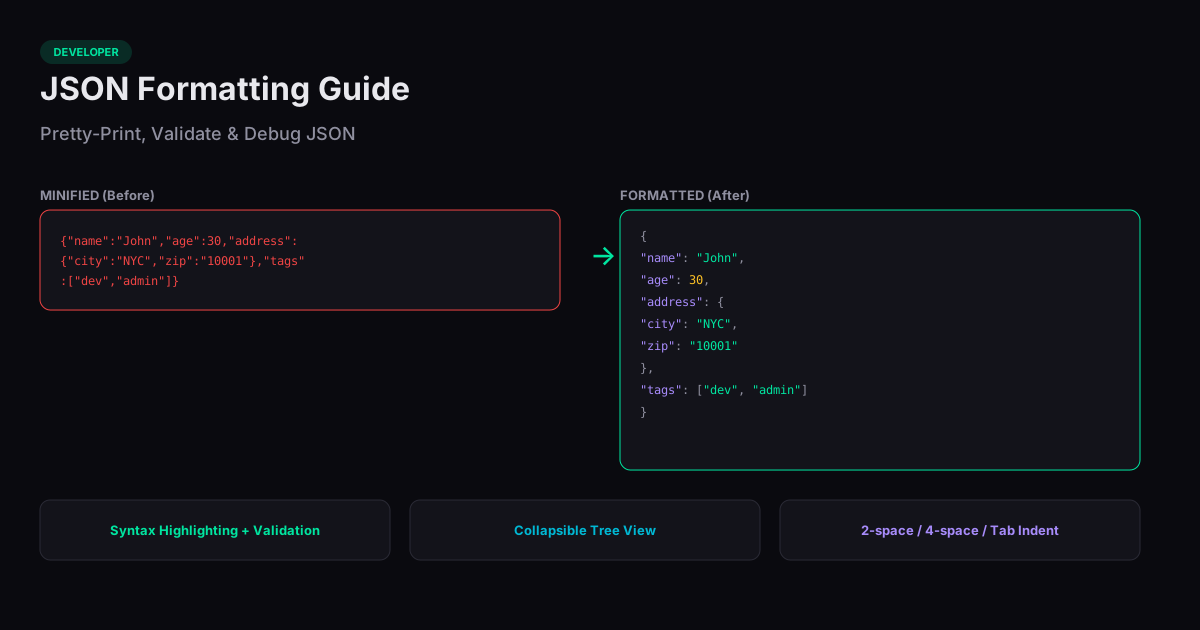
This JSON formatter guide covers everything you need to know about formatting, validating, and debugging JSON data. Whether you are working with API responses, configuration files, or data exports, properly formatted JSON is dramatically easier to read, edit, and troubleshoot than a minified single-line blob.
Why JSON Formatting Matters
Minified JSON removes all whitespace to reduce file size for network transfer. This is efficient for machines but unreadable for humans. A JSON formatter (also called a "pretty printer") parses the JSON string, validates its syntax, and outputs it with consistent indentation — typically two or four spaces per nesting level.
Formatted JSON makes structure visible at a glance. You can see which keys are siblings, where arrays begin and end, and how deeply nested a value is. This matters most when debugging unexpected data: a missing comma or an extra bracket is nearly impossible to spot in minified JSON but obvious in formatted output.
Common JSON Syntax Errors
The most frequent JSON errors are trailing commas (valid in JavaScript but not in JSON), single quotes instead of double quotes, unquoted keys, and comments (JSON does not support comments of any kind). A good formatter will pinpoint the exact line and character where parsing fails.
Another common issue is unescaped special characters in strings. Newlines, tabs, backslashes, and double quotes inside JSON strings must be escaped with a backslash. If your JSON contains file paths or regex patterns, these are likely culprits when parsing fails.
Formatting vs Minification
Formatting and minification are opposite operations. Formatting adds whitespace for readability; minification strips it for compactness. Both are lossless — the data is identical either way. Use formatted JSON during development and debugging, and minified JSON for production APIs and storage where every byte counts.
Working with Large JSON Files
Browser-based formatters handle most JSON files instantly, but very large files (over 10 MB) may cause the browser tab to become sluggish. For these cases, consider formatting only the section you need by extracting a subtree. Alternatively, use a streaming JSON viewer that loads and renders the document incrementally rather than parsing the entire structure into memory at once.
When working with API responses during development, format the JSON as a first step before trying to understand the data shape. This simple habit saves significant time — what looks like an incomprehensible wall of text becomes a clear, navigable structure in seconds.
Related Tools
JSON Formatter
Format, validate, and minify JSON data in your browser. Supports syntax highlighting.
JSON to CSV
Convert JSON to CSV online free. Paste or upload JSON arrays and download CSV files instantly.
JSON to XML
Convert JSON data to XML format instantly in your browser.
YAML to JSON
Convert YAML to JSON format instantly in your browser.