
How to Merge PDF Files: A Complete Guide
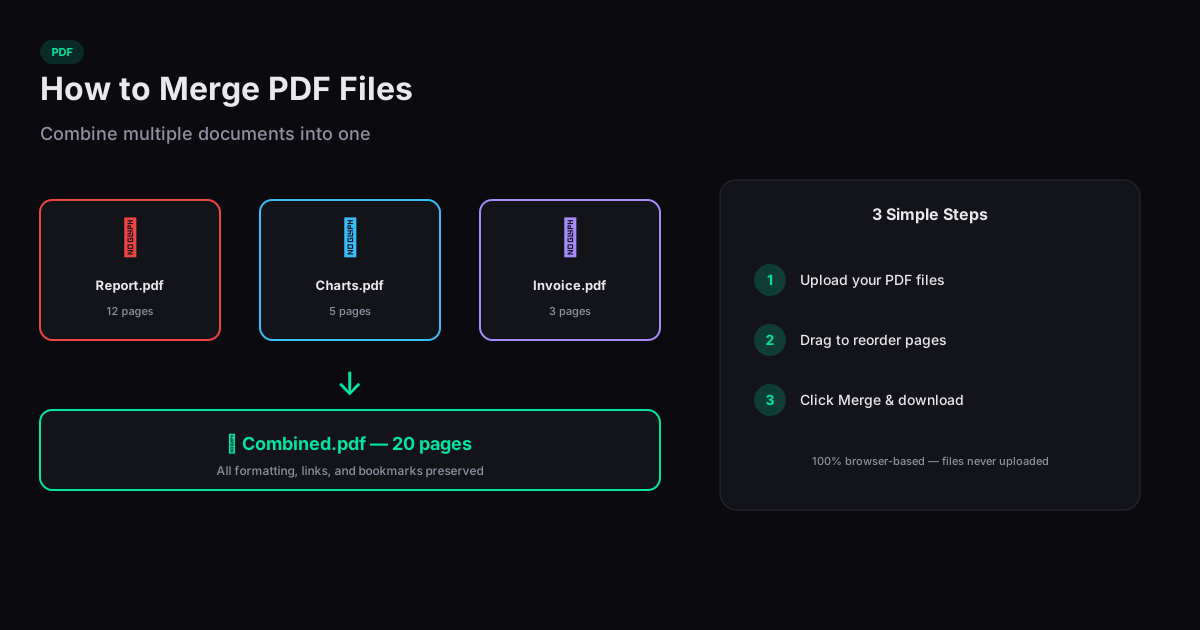
Learning how to merge PDF files is one of the most practical document skills you can have. Whether you are combining invoices for tax season, assembling a report from multiple departments, or joining scanned pages into a single document, PDF merging saves time and reduces file clutter. Here is how it works and what to watch out for.
How Browser-Based PDF Merging Works
When you merge PDFs in a browser-based tool, the application uses a JavaScript library like pdf-lib to read each PDF file into memory, extract its page tree, and assemble a new PDF that contains all pages from all input files in the order you specify. No server is involved — the processing happens entirely on your device.
Each PDF carries its own fonts, images, and metadata. The merge operation copies these resources into the new combined document. This means the merged file will be roughly the sum of the input file sizes (sometimes slightly smaller if fonts are deduplicated).
Reordering and Selecting Pages
Most merge tools let you drag files to change the order before combining. Some also let you select specific pages from each document. This is useful when you only need certain pages from a larger file — for example, extracting pages 3-7 from a 50-page report and merging them with another document.
If you need to remove pages from a PDF before merging, use a split tool first to extract the pages you want, then merge the results. This two-step workflow handles most real-world scenarios.
Handling Large Documents
Browser-based tools process files in your device's RAM. For most documents under 100 MB, this works seamlessly. For very large files (hundreds of megabytes), you may hit browser memory limits. If the tool freezes or crashes, try merging in smaller batches — combine files A and B first, then merge that result with file C.
Scanned PDFs are particularly large because each page is a full-resolution image. If your merged result is too big to email, compress the output file after merging. Compression typically reduces scanned PDFs by 40-70% with minimal visible quality loss.
Preserving Bookmarks and Links
One limitation of most merge tools is that internal hyperlinks and bookmarks may not carry over correctly. If your source PDFs have a clickable table of contents or cross-references between pages, check the merged output to verify they still work. External hyperlinks (URLs) typically survive the merge process without issues.
Related Tools
Merge PDF
Combine multiple PDF files into one document — entirely in your browser, no uploads.
Split PDF
Extract pages or split a PDF into multiple files — all in your browser.
Compress PDF
Reduce PDF file size without losing quality, right in your browser.
PDF to Word
Convert PDF documents to editable Word files directly in your browser.