
How to Convert and Optimize Images for Web Performance
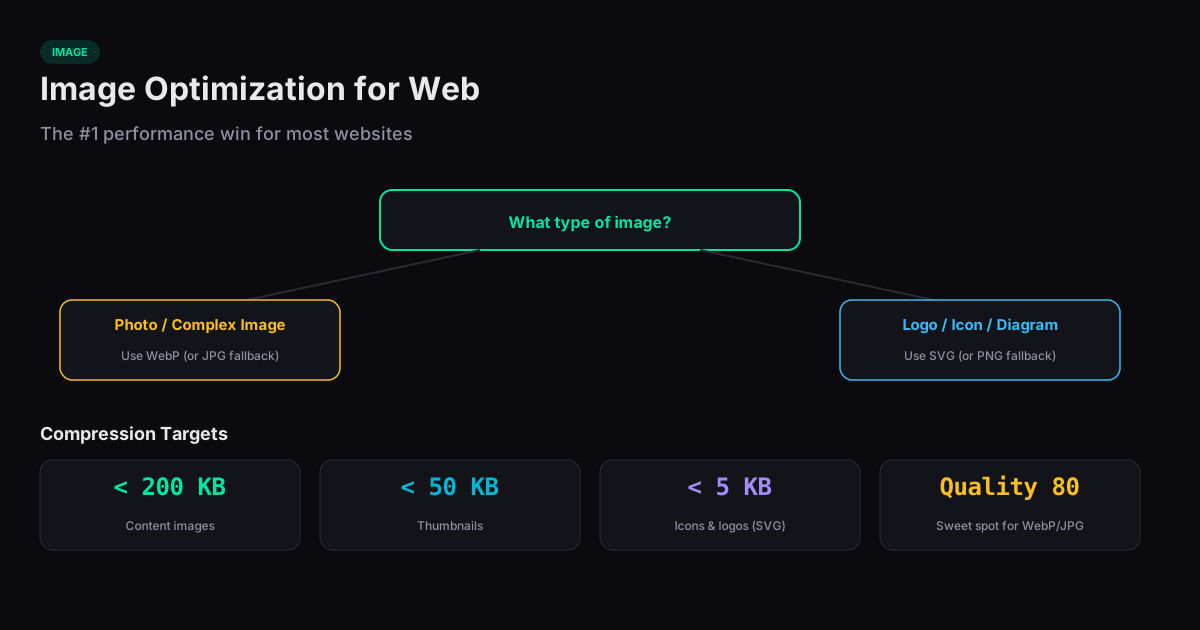
Learning how to optimize images for web performance is the single most effective way to speed up a website. Images typically account for 40-60% of a page's total weight. Converting to the right format and compressing to the right quality level can cut image sizes by 50-80% with no visible difference to visitors.
Choosing the Right Format
The format decision depends on the image content. Photographs and complex images with smooth gradients work best as WebP (lossy) or JPG. Graphics with sharp edges, text, solid colors, or transparency need WebP (lossless) or PNG. Simple animations should use WebP over GIF for significantly smaller files.
WebP is the recommended default for web use in 2026. It supports lossy compression (for photos), lossless compression (for graphics), transparency (alpha channel), and animation — all in one format. Browser support exceeds 97% globally. Use JPG and PNG as fallbacks only for legacy browser compatibility.
Compression Quality Targets
For lossy formats, quality 75-85 (on a 0-100 scale) provides the best balance of visual quality and file size for most images. Below 70, compression artifacts become noticeable on photographs. Above 90, file sizes increase rapidly with diminishing visual returns.
For lossless formats, compression is about algorithm efficiency rather than quality tradeoffs. PNG compression level affects encoding speed but not output quality — a PNG compressed at level 9 is identical in quality to one at level 1, just smaller. WebP lossless typically produces files 25% smaller than equivalent PNG files.
Resizing Before Compression
Compression alone is not enough if the image dimensions are wrong. A 4000x3000 photo displayed at 800x600 on a webpage wastes bandwidth delivering pixels that will never be shown. Resize images to match their display dimensions (accounting for 2x resolution for retina displays) before compressing. This single step often provides a larger file size reduction than compression alone.
For responsive designs, generate multiple sizes of each image and use the HTML srcset attribute to let the browser choose the right one. A mobile visitor on a 400px-wide screen should not download the same image as a desktop visitor with a 1400px-wide viewport.
A Practical Conversion Workflow
Start by identifying the large images on your page using your browser's developer tools (Network tab, filter by image, sort by size). Convert each one to WebP at quality 80. Compare file sizes and visual quality. If the result looks good, replace the original. For images that need transparency, use WebP lossless. Batch processing tools let you convert dozens of images at once, making it practical to optimize an entire site in minutes rather than hours.
Related Tools
Compress Image
Reduce image file size while preserving quality — no uploads, browser only.
Resize Image
Resize images to any dimension quickly in your browser. No server needed.
JPG to WebP
Convert JPG images to WebP format for smaller file sizes — all in your browser.
PNG to WebP
Convert PNG images to WebP format for smaller file sizes — all in your browser.
SVG to PNG
Convert SVG vector images to PNG format in your browser with no uploads.