
How to Compress a PDF Without Losing Quality
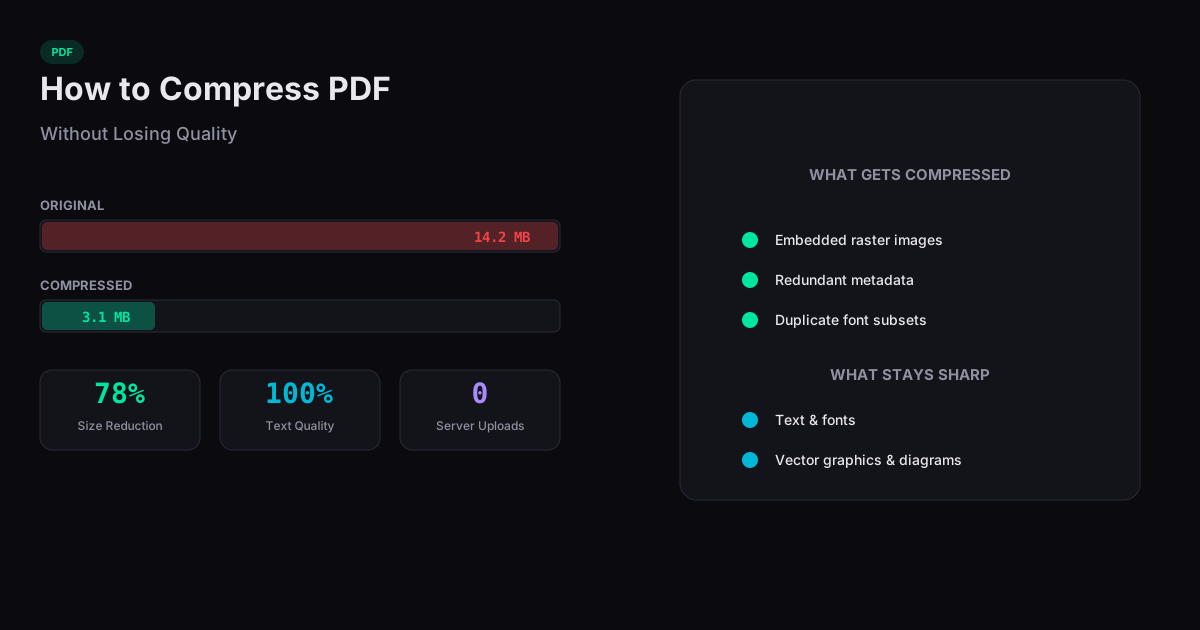
Compressing a PDF without losing quality is possible because most of the file size in a PDF comes from embedded images, not from the text or vector graphics. When you compress a PDF, the tool downsamples these images to a lower resolution and removes redundant metadata — while leaving text, fonts, and line art completely untouched.
What Gets Compressed in a PDF?
A PDF file contains several types of data: text streams (the actual words on the page), font subsets, vector paths (shapes, lines, diagrams), raster images (photos, scanned pages), and internal metadata (creation date, software used, XMP data). Compression targets the raster images and metadata because they account for the vast majority of file size in most documents.
Text and vector graphics are already highly compact — a full page of formatted text might be a few kilobytes, while a single embedded photo can be several megabytes. This is why image-heavy PDFs see dramatic size reductions (often 50-80%) while text-only documents barely change.
How Browser-Based Compression Works
Browser-based PDF compression uses JavaScript libraries like pdf-lib to parse the PDF structure, identify embedded images, and re-encode them at a lower quality setting. The key advantage over server-based tools is privacy: your document never leaves your device. The compression happens in your browser tab using your computer's processor.
The process reads the PDF into browser memory, iterates through each page's image resources, applies JPEG compression at the selected quality level, and writes a new PDF with the optimized images. Fonts, text, and vector elements pass through unchanged.
Tips for the Smallest File Size
Start with the balanced compression preset, which typically reduces file size by 40-60% with no visible quality difference for on-screen viewing. If you need to email the file and size is critical, use maximum compression — the images will be noticeably softer at 100% zoom but perfectly readable at normal viewing sizes.
For scanned documents (which are entirely images), compression makes the biggest difference. For text-heavy reports with a few charts, the reduction will be modest. If your PDF is already under 1 MB and text-heavy, it may not compress much further.
When Quality Loss Is Unavoidable
Some PDFs contain high-resolution photography where any compression is visible at full zoom. If your document is a photo portfolio or print-ready brochure, aggressive compression will degrade the images. In these cases, use the lightest compression setting and accept a smaller size reduction. The goal is finding the point where file size drops meaningfully before quality degrades noticeably.