
Best Image Format for Web: JPG vs PNG vs WebP Compared
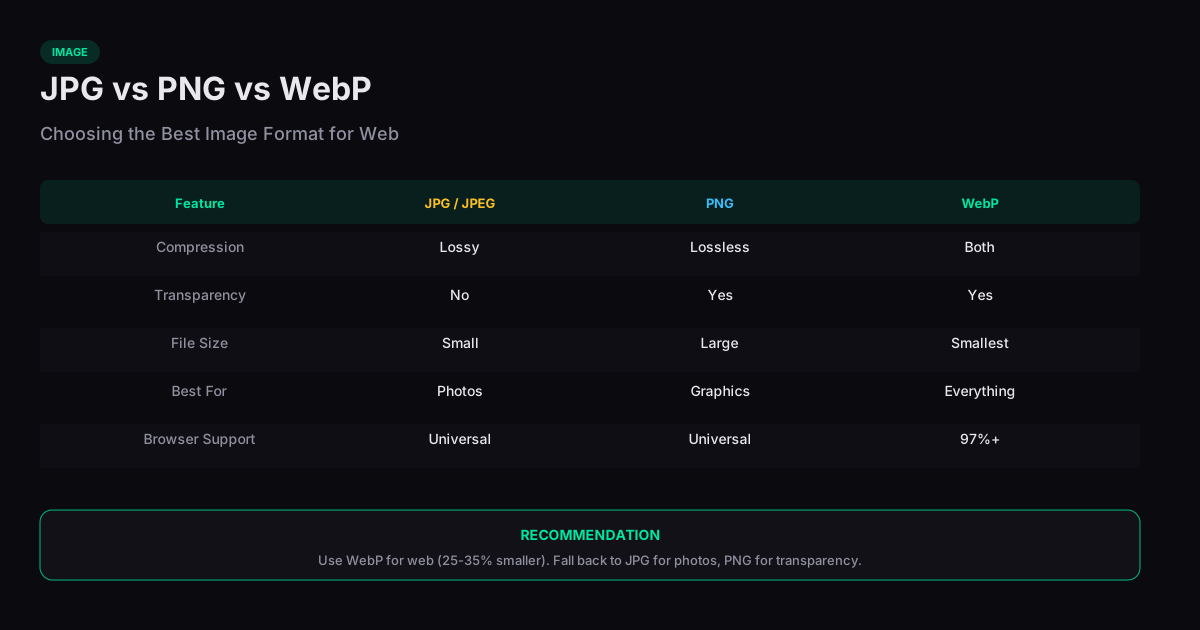
Choosing the best image format for web pages is one of the most impactful decisions for site performance. The wrong format can triple page load times, while the right one delivers sharp visuals at a fraction of the file size. This guide compares JPG, PNG, and WebP on the dimensions that matter most: quality, file size, browser support, and transparency.
JPG: Best for Photographs
JPG uses lossy compression, meaning it permanently discards some image data to achieve smaller files. This makes it ideal for photographs and complex images with many colors and gradients. A typical photo saved as JPG at quality 80 looks nearly identical to the original while being 5-10x smaller than an uncompressed bitmap.
The tradeoff is that JPG does not support transparency, and repeated editing and re-saving degrades quality further. JPG also struggles with sharp edges and text — you may see visible artifacts around high-contrast boundaries. For screenshots, logos, or anything with solid colors and crisp lines, PNG or WebP is a better choice.
PNG: Best for Graphics and Transparency
PNG uses lossless compression, preserving every pixel exactly as the original. This makes it the right choice for screenshots, logos, icons, diagrams, and any image where you need crisp edges or transparency. PNG supports full alpha-channel transparency, allowing smooth gradients from opaque to transparent.
The downside is file size. A PNG photograph is typically 3-5x larger than an equivalent JPG because lossless compression cannot discard data the way lossy compression does. For photos displayed on the web, this size penalty usually is not worth the quality benefit since the difference is invisible at typical screen resolutions.
WebP: The Modern All-Rounder
WebP, developed by Google, supports both lossy and lossless compression, plus transparency. In lossy mode, WebP produces files 25-35% smaller than JPG at equivalent visual quality. In lossless mode, it beats PNG by about 25%. WebP also supports animation, making it a lighter alternative to GIF.
Browser support for WebP now exceeds 97% globally, making it a safe default for most web projects. The main limitation is that some older image editing software does not open WebP files natively, which can cause friction in workflows where images are frequently edited outside the browser.
Which Format Should You Choose?
For photographs and hero images, use WebP with a JPG fallback. For logos, icons, and graphics with transparency, use WebP lossless or PNG. For simple animations, use WebP over GIF. If your audience includes legacy browsers that do not support WebP, serve JPG and PNG as fallbacks using the HTML picture element. The fastest approach is to convert your existing images to WebP and compare file sizes — the savings are often dramatic.
Related Tools
Compress Image
Reduce image file size while preserving quality — no uploads, browser only.
PNG to JPG
Convert PNG images to JPG format in your browser with no file uploads.
JPG to WebP
Convert JPG images to WebP format for smaller file sizes — all in your browser.
PNG to WebP
Convert PNG images to WebP format for smaller file sizes — all in your browser.